





If you want to know how to stay focused, start with the devices in front of you. Your phone and computer already carry the tools that matter most. A Focus mode silences all but a few chosen people, settings strip away badges and banners, and timers break work into short, protected sessions. Add one app blocker for the sites and apps you open on autopilot, and the setup starts enforcing focus for you. You make the decisions once, while you feel calm, and the technology holds the line later, with no willpower needed in the moment.
Why Your Devices Keep Breaking Your Focus
Your devices are not neutral tools while you work. Every notification asks for a decision, every red badge promises something unfinished, and every feed is built to offer one more item when you reach the bottom. None of these interruptions needs to be important to break your concentration. A lock-screen banner from a shopping app costs the same glance as a message from your family, and returning to a difficult task after that glance takes far longer than the glance itself.
The pattern is the problem, not any single alert. Badges keep apps looking urgent even when nothing has happened. Banners pull your eyes away mid-sentence. Feeds reward a quick check with novelty, which trains you to check again sooner. Willpower fights that system one interruption at a time. The steps below change the system instead: fewer alerts, a Focus mode that enforces quiet hours, timed sessions with a clear end, and blockers for the places willpower loses to most often.
Step 1: Fix Your Notifications Before Anything Else
Start where the interruptions start. Open your notification settings and turn off alerts for shopping, games, news, and social apps completely. These apps do not need to reach you in real time, and everything in them will still be there when you open them on purpose. Next, remove the quieter distractions: turn off notification badges and lock-screen banners for anything that remains, so an app cannot advertise itself every time you pick up your phone.
Keep the short list of things that are genuinely time-sensitive: calls, messages from real people, calendar reminders, and banking or security alerts. Everything else can wait. This one pass usually removes most interruptions, and it makes the Focus mode in the next step far more effective, because you are no longer asking a single setting to fight every app on the phone at once.
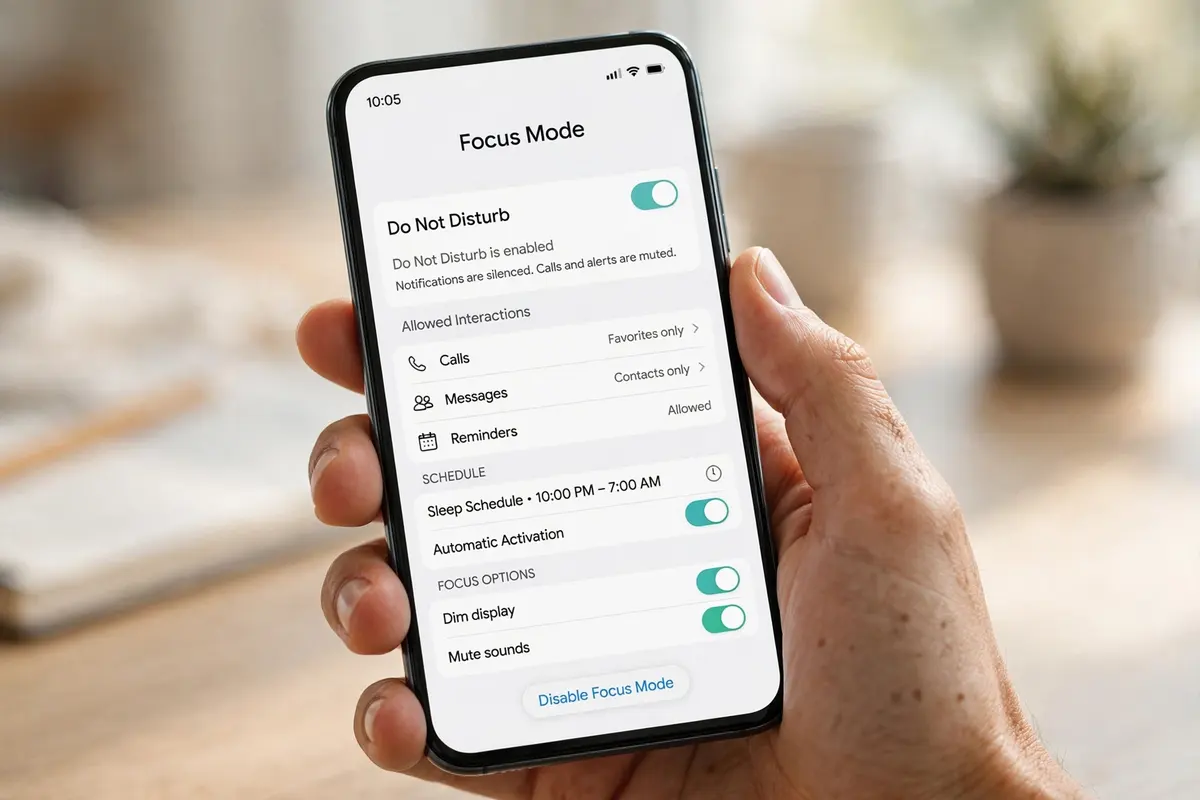
Step 2: Set Up a Focus Mode on Your Phone
Notifications are now quieter, but you still need a single switch for deep work. That switch is a Focus mode: a named profile that decides, in advance, who and what can reach you during a session.
How Do You Set Up Focus Mode on an iPhone?
On an iPhone, open Settings, then Focus, and choose a profile such as Work, or create a custom one. Add the people who are allowed to notify you — a partner, a child’s school, a manager — and the apps that are genuinely needed for the task, such as Calendar or Messages. Set the Focus to turn on automatically by time, location, or app, so it starts when you arrive at your desk or open a work app without you remembering. Focus syncs across your Apple devices, so the same rules reach your iPad and Mac, and you can link a calmer Home Screen page to the profile so distracting apps disappear while it is on.
How Do You Set Up Focus Mode on Android?
On Android, open Settings, then Digital Wellbeing, then Focus mode. Choose the distracting apps to pause, then tap Turn on now, or set a schedule for your working hours. If you need a short pause, use Take a break for 5, 10, or 30 minutes rather than turning Focus off completely. Menu names vary by manufacturer — some phones place the same tools under Modes or Do Not Disturb — but the setup is the same: pick allowed people, pause the noisy apps, and let a schedule do the remembering.
Step 3: Give Your Computer the Same Rules
A phone on Focus and a computer interrupting freely will still break a session, so give the computer the same rules. On a Mac, Focus syncs from your iPhone: when the Work profile turns on, notifications quiet on the Mac as well, as long as both use the same Apple account and Share Across Devices is on.
How Do Focus Sessions Work on Windows 11?
On Windows 11, open Settings, then System, then Focus. Set a session length, choose to hide badges on taskbar apps and stop taskbar apps from flashing, and turn on Do Not Disturb for the session. The Clock app’s Focus sessions build the same idea into a timer and can connect with Microsoft To Do, so a task list and a quiet period start together. Whichever system you use, the aim is identical to the phone: no banners, no badges, and no flashing icons asking for a glance.

Step 4: Work in Timed Sessions So Focus Has an End Point
How to Stay Focused With the Pomodoro Technique
Quiet devices help, but an open-ended work session still invites drifting. Give focus an end point. The best-known method is the Pomodoro technique: work for 25 minutes, rest for 5 minutes, and take a longer break after four sessions. The short target makes starting easier, because you only have to protect 25 minutes, and the break is earned rather than taken guiltily mid-task.
A timer app can make the session visible. Forest, for example, grows a virtual tree while you leave the phone alone, which turns not checking into part of the game. If 25 minutes feels too short once a task is flowing, lengthen the pattern to 50 minutes of work and 10 minutes of rest. The exact numbers matter less than keeping the same bargain every time: during the session, one task only; when the timer ends, you actually stop.
Step 5: Add Focus Apps for the Distractions Settings Cannot Stop
Hard Blockers: Freedom, Cold Turkey, and Opal
Focus modes quiet interruptions, but they do not stop you opening a distracting app yourself. For that, add a blocker — and choose it by how your focus actually breaks. Hard blockers suit people who override gentle reminders. Freedom blocks chosen apps and websites across all your devices at once, and its Locked Mode, on paid plans, stops you ending a session early. Cold Turkey, for Windows and Mac, is stricter still: its Frozen Turkey option can lock you out of the computer except for what you allowed. Opal works on your phone, reports a focus score, and its Hard Mode prevents you bypassing a block once it starts.
Friction Apps: One Sec and ScreenZen
Friction tools suit people who open apps on autopilot rather than deliberately. One sec inserts a breathing pause before a chosen app opens, which is often enough for the impulse to pass. ScreenZen adds a delay before opening, a daily goal, and is free. Neither physically prevents opening — they make you notice that you are doing it.
| App | Main approach | Works on | Free option |
|---|---|---|---|
| Freedom | Hard blocking across devices, Locked Mode | Phone and computer | Limited trial; Locked Mode is paid |
| Cold Turkey | Hard blocking, Frozen Turkey lockout | Windows and Mac | Basic blocking free |
| Opal | Hard blocking with focus score, Hard Mode | Phone | Free tier available |
| ScreenZen | Friction: delay and pause before opening | Phone | Free |
Pick by how focus breaks. If you deliberately override reminders, choose a hard blocker with a lock you cannot undo. If you drift into apps without noticing, friction is usually enough and far less frustrating to live with.
Step 6: Block the Websites That Pull You In
App blockers handle the phone and installed apps, but many distractions live in the browser. Add a website blocker for those. LeechBlock NG, for Firefox and Chrome, lets you block sets of sites on schedules you choose, with delays and a countdown before a blocked page can be reached. StayFocusd takes a different approach: it gives distracting sites a daily allowance, and once the allowance is used, the sites are blocked for the rest of the day. Its Nuclear Option blocks everything for a set number of hours, with no way back until the time expires.
One warning matters with every extension: an extension only guards the browser it is installed in. If a blocked site is one click away in a second browser, the block is a suggestion. Install the blocker in the browser you actually work in, remove or ignore the spare browser, or use a device-wide tool such as Freedom for the sites that tempt you most.
Step 7: Set Up Your Workspace So the Phone Stays Boring
The last step is physical, because the best software rules fail when the phone sits face-up beside the keyboard. Move social apps off the first Home Screen, so opening one requires a deliberate search rather than a thumb tap. Give the phone a parking spot during sessions — another room is best, a closed drawer is second best — and charge it there rather than at the desk.
Make the phone duller for the times it is nearby. Grayscale removes the color that makes feeds vivid, and a plain wallpaper and empty first screen remove the invitations. On the computer, work in full screen on one task, so other windows stop competing for attention. None of this is dramatic, and that is the point: focus improves most from small frictions repeated every day.
Sleep matters too — if poor sleep is undermining your days, see how to stop snoring.
Where This Advice Breaks Down: Mistakes That Make Focus Tools Fail
These tools fail in predictable ways, and the failures are usually setup errors rather than bad apps. The first is blocking everything at once. A phone with every app blocked and a computer with every site banned are miserable to use, so the whole system gets switched off within a week. Block the few places you actually lose time to, and leave the rest alone. The second mistake is the opposite: rules that are too easy to undo. A block you can cancel with one tap, in the moment you most want to cancel it, is not a block. Use the locks — Locked Mode, Hard Mode, or a freeze you cannot edit — for the sessions that matter.
The third mistake is fixing only the phone. A quiet phone beside an interrupting computer, or a blocked laptop beside an open phone, simply moves the distraction. Apply the same rules to both. The fourth is skipping breaks. Timed sessions work because the break is part of the bargain; work through every break and the sessions feel endless, the timer gets ignored, and the system collapses. Take the break away from the screen, then start again.
Related reading: for a cleaner workspace at home, see does vinegar kill mold.
Frequently Asked Questions
Do Focus Apps Really Work?
Yes, when they enforce a rule you chose in advance. An app cannot create motivation, but it can remove the moment where motivation is tested, by making a distracting app or site unavailable during a session you planned while calm.
How Long Should a Focus Session Be?
Start with 25 minutes, because it is short enough to begin even on a difficult task. As sessions become routine, stretch them toward 50 to 90 minutes for work that needs depth, keeping a real break between sessions either way.
Will Focus Mode Block Emergency Calls?
No, not if your allowed list is set up properly. Add close family and anyone who might genuinely need you urgently to the allowed people list, then test it once by having an allowed person call while Focus is on. A blocked emergency contact usually means the list was never finished.
What Is the Difference Between Do Not Disturb and Focus Mode?
Do Not Disturb is a single mute: everything goes quiet in the same way every time. Focus mode is a set of named profiles — Work, Personal, Sleep — each with its own allowed people, allowed apps, schedules, and Home Screen, so different parts of the day get different rules.
Can One App Block Distractions on My Phone and Computer Together?
Yes. Freedom blocks across phone and computer in the same session, and Apple’s Focus syncs its rules across iPhone, iPad, and Mac. Either way, the point is the same: one decision covers every screen, so a blocked phone cannot simply send you to an unblocked laptop.
I Keep Turning My Own Blocks Off. What Actually Helps?
Locks help: Freedom’s Locked Mode, Opal’s Hard Mode, and ScreenZen’s freeze settings stop a session being edited or ended early. In ScreenZen, an accountability partner can also hold the settings, so changing a block means involving another person — friction that is social rather than technical, and for many people the most effective kind.
This guide is part of our Tech Explainers collection — see the full guide for more.



3 Comments
Pingback: Does Vinegar Kill Mold? What Works, What Doesn't, and How to Use It
Pingback: What Does IMY Mean in Texting? IMY Meaning in Chat Explained
Pingback: Good Netflix Movies: 20 Best Movies on Netflix to Watch by Mood